Section author: Laiton Hedley
Common Data Recipes
This section provides step-by-step recipes for the most common data handling tasks in jamovi.
Reverse Scoring Survey Items
When handling survey data, some items are reverse scored — higher scores on those items indicate less of the construct being measured. A simple rule of thumb: subtract the item score from the maximum possible score plus one.
For example, participants have responded on a 1–7 Likert scale to three items, but Item_3 is scored in the opposite direction:
Item_1 |
Item_2 |
Item_3 |
|---|---|---|
4 |
3 |
3 |
3 |
4 |
5 |
4 |
4 |
2 |
Single item: create a computed variable with a direct formula.
Click a new column and choose New Computed Variable.
Enter the formula:
8 - Item_3
Multiple items (same formula): use a transformed variable so you can apply the same formula to several columns at once.
Click a new column and choose New Transformed Variable.
Select the item as the source variable.
Click Using transformation and choose Create New Transform….
Enter the formula:
8 - $source
Item_1 |
Item_2 |
Item_3 |
Item_3_Reversed |
|---|---|---|---|
4 |
3 |
3 |
5 |
3 |
4 |
5 |
3 |
4 |
4 |
2 |
6 |
Higher scores on Item_3_Reversed now indicate more of the construct, consistent with Item_1 and Item_2. This step is important before computing a sum or mean score across items.
Summation (or Total) Score of Survey Items
Sum scores combine multiple survey items into a single overall score for a construct — for example, to measure a personality trait such as Extraversion (more info).
Below are responses to four items of an Extraversion subscale, each scored on a 1–5 Likert scale:
Item_1 |
Item_6 |
Item_11 |
Item_16 |
|---|---|---|---|
5 |
1 |
3 |
3 |
4 |
2 |
1 |
1 |
4 |
2 |
4 |
5 |
Click a new column and choose New Computed Variable.
Use the
SUM()function with all item names:SUM(Item_1, Item_6, Item_11, Item_16)
Item_1 |
Item_6 |
Item_11 |
Item_16 |
Extraversion_Sum_Score |
|---|---|---|---|---|
5 |
1 |
3 |
3 |
12 |
4 |
2 |
1 |
1 |
8 |
4 |
2 |
4 |
5 |
15 |
The new column contains the overall score for each participant.
Recoding a Continuous Variable to Categories
Continuous variables are often recoded into categories for group comparisons. Age is a common example — it can be grouped into Young Adults (18–29), Middle-Aged Adults (30–59), and Older Adults (60+).
Age |
|---|
25 |
18 |
35 |
45 |
65 |
Click a new column and choose New Transformed Variable.
Select
Ageas the source variable.Click Using transformation and choose Create New Transform….
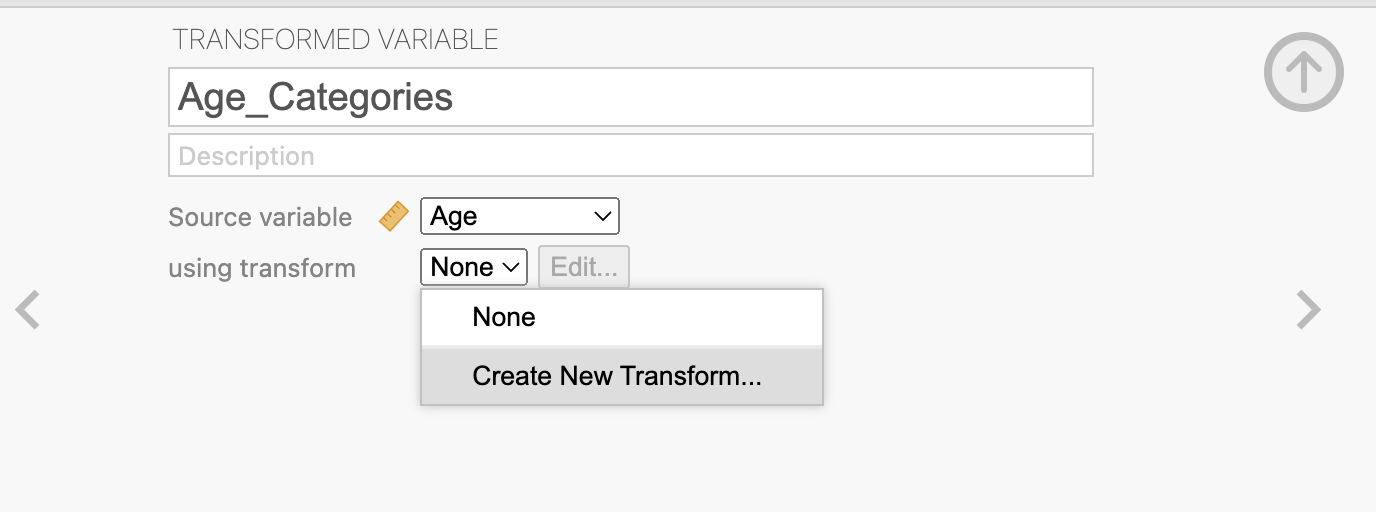
Click Add recode condition and set up the following conditions:
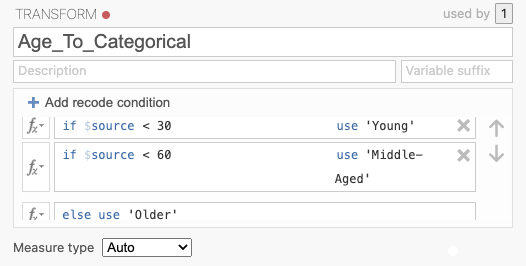
If
$source < 30, assign'Young'If
$source < 50, assign'Middle-Aged'Else, assign
'Older'
Conditions are evaluated in order, so values below 30 are assigned “Young” first, then values below 50 become “Middle-Aged”, and all remaining values become “Older”.
Age |
Age_Category |
|---|---|
25 |
Young |
18 |
Young |
35 |
Middle-Aged |
45 |
Middle-Aged |
65 |
Older |
Recoding/Reducing the Number of Categories
Categorical variables with many levels can be reduced to fewer categories for simpler analysis. For example, smoker status may have four levels (Non-smoker, Occasional Smoker, Regular Smoker, Heavy Smoker) that can be collapsed into two (Non-smoker, Smoker).
Smoker_Status |
|---|
Non-smoker |
Occasional Smoker |
Regular Smoker |
Heavy Smoker |
Click a new column and choose New Transformed Variable.
Select
Smoker_Statusas the source variable.Click Using transformation and choose Create New Transform….
Set up recode conditions to map Occasional Smoker, Regular Smoker, and Heavy Smoker to
'Smoker', leaving Non-smoker unchanged: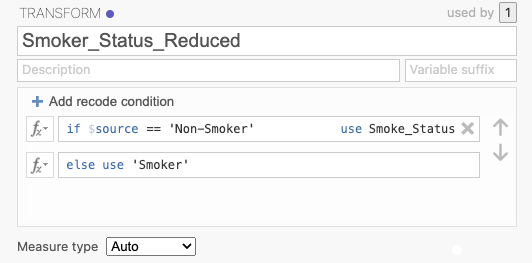
Smoker_Status |
Smoker_Status_Reduced |
|---|---|
Non-smoker |
Non-smoker |
Occasional Smoker |
Smoker |
Regular Smoker |
Smoker |
Heavy Smoker |
Smoker |
Excluding Outliers (IQR method)
The IQR method flags values that lie more than 1.5 times the interquartile range above the third quartile or below the first quartile as outliers (more info).
The data below has two columns: Memory Score and its Absolute IQR value. The last two rows show extreme outliers (values of 15 and 98) with ABSIQR values above 1.5, indicating they fall outside the boxplot whiskers:
Memory_Score |
ABSIQR(Memory_Score) |
|---|---|
68 |
0 |
66 |
0 |
70 |
0 |
… |
… |
15 |
9.05 |
98 |
5.05 |
To exclude these outliers:
Click the Data tab and select Filters.
Enter the expression:
ABSIQR(Memory_Score) < 1.5
Filter 1 |
Memory_Score |
ABSIQR(Memory_Score) |
|---|---|---|
✔ |
68 |
0 |
✔ |
66 |
0 |
✔ |
70 |
0 |
✔ |
… |
… |
✘ |
15 |
9.05 |
✘ |
98 |
5.05 |
The two outliers are excluded from all analyses and visualisations.
Excluding Outliers (z-score method)
The z-score method typically flags values with an absolute z-score greater than 3 as outliers, though stricter or more lenient thresholds can be applied.
Memory_Score |
ABSZ(Memory_Score) |
|---|---|
68 |
1.08 |
66 |
0.93 |
70 |
1.23 |
… |
… |
15 |
3.01 |
98 |
3.43 |
The last two rows show outlier values with absolute z-scores above 3. To exclude them:
Click the Data tab and select Filters.
Enter the expression:
ABSZ(Memory_Score) < 3
Filter 1 |
Memory_Score |
ABSZ(Memory_Score) |
|---|---|---|
✔ |
68 |
1.08 |
✔ |
66 |
0.93 |
✔ |
70 |
1.23 |
✔ |
… |
… |
✘ |
15 |
3.01 |
✘ |
98 |
3.43 |
Restricting Analyses to a Subset of Data
To restrict all analyses to a single group, use a Filter. This is best when the excluded rows are of no interest at all.
Below is a dataset with Region, Education Level, and Total Survey Score. To analyse only participants from North America:
Click the Data tab and select Filters.
Enter the expression:
Region == 'North America'
Region |
Education Level |
Total Survey Score |
|---|---|---|
North America |
High School |
15 |
North America |
University |
20 |
Europe |
High School |
10 |
Europe |
University |
25 |
Filter 1 |
Region |
Education Level |
Total Survey Score |
|---|---|---|---|
✔ |
North America |
High School |
15 |
✔ |
North America |
University |
20 |
✘ |
Europe |
High School |
10 |
✘ |
Europe |
University |
25 |
jamovi will include only the ticked rows in all subsequent analyses and visualisations.
Analysing Subsets of Data (Split File)
To analyse two or more subsets separately — equivalent to “Split File” in SPSS
— the approach in jamovi requires creating a computed variable per subset using
the FILTER() function.
Tip
This is a workaround for the absence of a native split-file feature. A more direct solution is planned for a future version of jamovi.
Using the same dataset as above, create one computed variable for each region:
Click a new column, choose New Computed Variable, name it
Score_NorthAm, and enter:FILTER(`Total Survey Score`, Region == 'North America')Repeat for Europe, naming it
Score_Europe:FILTER(`Total Survey Score`, Region == 'Europe')
Region |
Education Level |
Total Survey Score |
Score_NorthAm |
Score_Europe |
|---|---|---|---|---|
North America |
High School |
15 |
15 |
|
North America |
University |
20 |
20 |
|
Europe |
High School |
10 |
10 |
|
Europe |
University |
25 |
25 |
Use Score_NorthAm and Score_Europe in separate analyses to compare
Education Level effects within each region independently.
Attention Checks with a Reverse-Scored Item
Two items asking a similar question but worded in opposite directions can be used as an attention check. Participants who fail to respond consistently are likely not paying attention.
For example: - Item 1: “I never doubt my abilities.” - Item 2: “I often doubt my abilities.”
A participant who strongly agrees (5) with Item 1 should strongly disagree (1) with Item 2. First, reverse-score Item 2 (assuming a 1–5 scale):
Item_1 |
Item_2 |
Item_2_Reversed |
|---|---|---|
5 |
1 |
5 |
1 |
5 |
1 |
1 |
2 |
4 |
Next:
Click a new column and choose New Computed Variable.
Compute the absolute difference between Item_1 and Item_2_Reversed:
ABS(Item_1 - Item_2_Reversed)
Item_1 |
Item_2 |
Item_2_Reversed |
Abs_Difference |
|---|---|---|---|
5 |
1 |
5 |
0 |
1 |
5 |
1 |
0 |
1 |
2 |
4 |
3 |
Finally:
Click the Data tab and select Filters.
Keep only participants with a difference of 0:
Abs_Difference == 0
Filter 1 |
Item_1 |
Item_2 |
Item_2_Reversed |
Abs_Difference |
|---|---|---|---|---|
✔ |
5 |
1 |
5 |
0 |
✔ |
1 |
5 |
1 |
0 |
✘ |
1 |
2 |
4 |
3 |
Only participants who responded consistently are included in analyses.
Attention Checks with a Single Item
A single attention check item instructs participants to select a specific response (e.g. “Please select ‘Strongly Agree’ for this item”). Any participant who selects a different response is likely not paying attention.
Below, Item_9 is an attention check instructing participants to select 5 on a 1–5 scale. Participant 3 selected 4 and should be excluded:
ID |
Item_1 |
Item_2 |
Item_9_Attention_Check |
|---|---|---|---|
1 |
3 |
3 |
5 |
2 |
5 |
4 |
5 |
3 |
4 |
4 |
4 |
Click the Data tab and select Filters.
Enter the expression:
Item_9_Attention_Check == 5
Filter 1 |
ID |
Item_1 |
Item_2 |
Item_9_Attention_Check |
|---|---|---|---|---|
✔ |
1 |
3 |
3 |
5 |
✔ |
2 |
5 |
4 |
5 |
✘ |
3 |
4 |
4 |
4 |
Only participants who passed the attention check are included.
String Concatenation
String concatenation joins two or more text values into a single variable. This can be useful for combining categorical variables into a single grouping variable.
For example, combining Condition and Time into a single variable:
Participant_ID |
Condition |
Time |
|---|---|---|
1 |
Control |
Pre |
1 |
Control |
Post |
2 |
Therapy |
Pre |
2 |
Therapy |
Post |
Click a new column and choose New Computed Variable.
Name it
Condition_Timeand enter:Condition + '_' + Time
Participant_ID |
Condition |
Time |
Condition_Time |
|---|---|---|---|
1 |
Control |
Pre |
Control_Pre |
1 |
Control |
Post |
Control_Post |
2 |
Therapy |
Pre |
Therapy_Pre |
2 |
Therapy |
Post |
Therapy_Post |
The underscore separator can be omitted or replaced with any other character.