Section author: Laiton Hedley
Transformed Variables
Use Transformed Variables for complex transformations, such as reverse scoring and recoding. Unlike computed variables, transformed variables allow you to define a single transformation rule and apply it across multiple columns at once.
Adding a Transformed Variable
Click the Data tab in the ribbon.
Click the Add button and select Append (or Insert) under Transformed Variable.
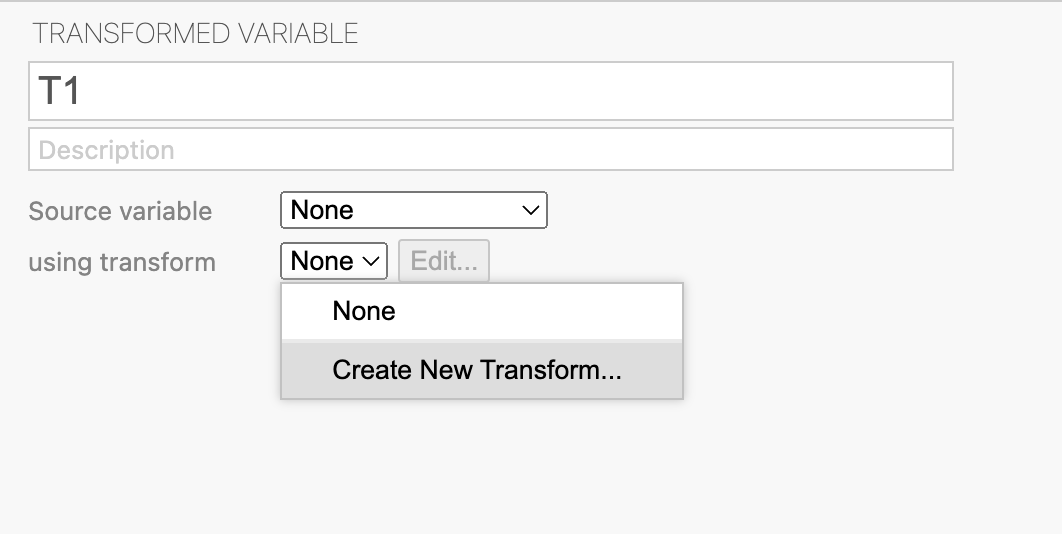
Double-click the new column header to open the variable editor.
Configuring Your Transformation
Once the variable editor is open:
Select a Source variable: Choose the column you want to transform.
Select a Transform: Click using transform to select an existing transformation or create a new one by selecting Create New Transform….
When you create a new transformation, you use the special variable $source
to refer to your selected source column.
Example: Reverse Scoring
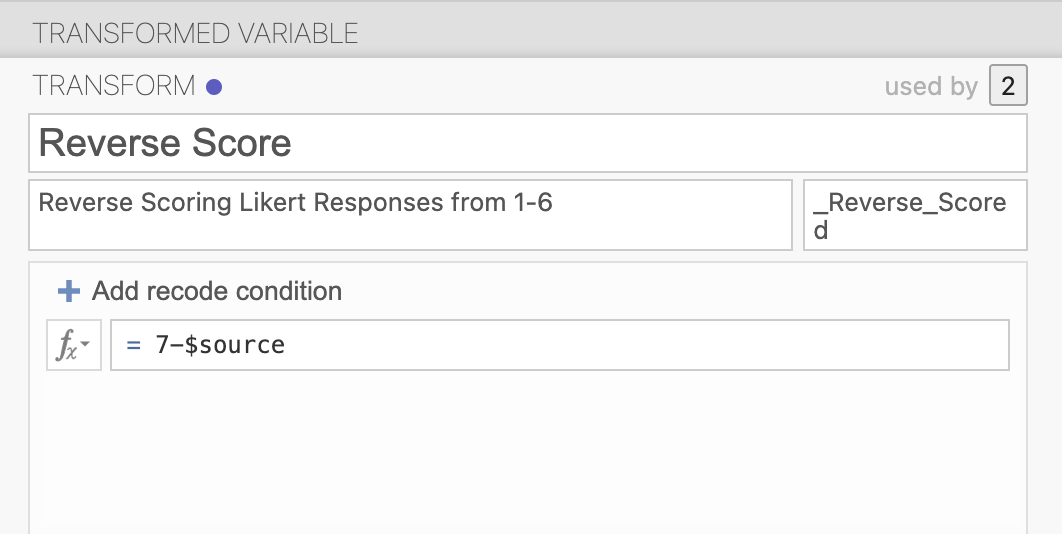
To reverse score a survey item on a 6-point Likert scale (where 1 becomes 6, 2 becomes 5, etc.), use the formula:
7 - $source
In this case, jamovi subtracts each value in the source column from 7.
Item_3 (Source) |
Transformed Variable (7 - $source) |
|---|---|
3 |
4 |
6 |
1 |
2 |
5 |
Recoding Variables
Transformed variables are also ideal for recoding — for example, recoding
cigarette consumption (0 per day → 'Non-smoker', 1–10 per day →
'Smoker') or converting exam scores into grade labels (≥ 85 →
'HD', ≥ 75 → 'D', and so on).
To set up a recode:
In the variable editor, click the Add recode condition button.
Define your condition using
$source(e.g.,$source >= 85).Assign a value for when that condition is true (e.g.,
'HD').Repeat for each additional condition.
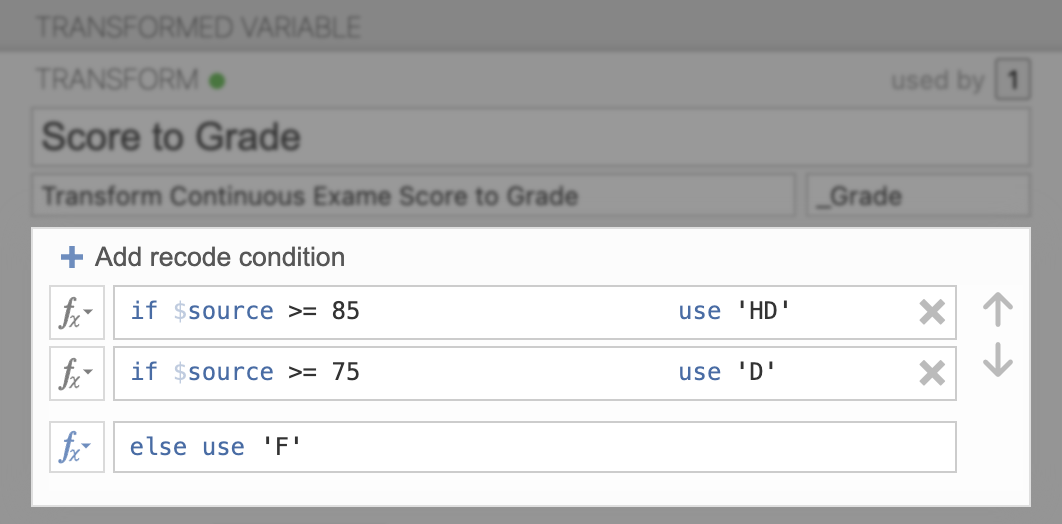
Adding conditions for all five grade boundaries (HD, D, C, P, F) produces the following result:
Exam Score |
Grade |
|---|---|
90 |
HD |
76 |
D |
66 |
C |
50 |
P |
44 |
F |
Important
Recode conditions are evaluated in order. jamovi uses the value from the
first condition that resolves to true and ignores the rest. This means
you can simplify your conditions: for example, you can write $source >= 75
immediately after an $source >= 85 condition without needing to also
specify $source < 85 — values of 85 and above are already handled by
the first condition.
Transforming Multiple Variables
You can apply the same transformation to many variables simultaneously:
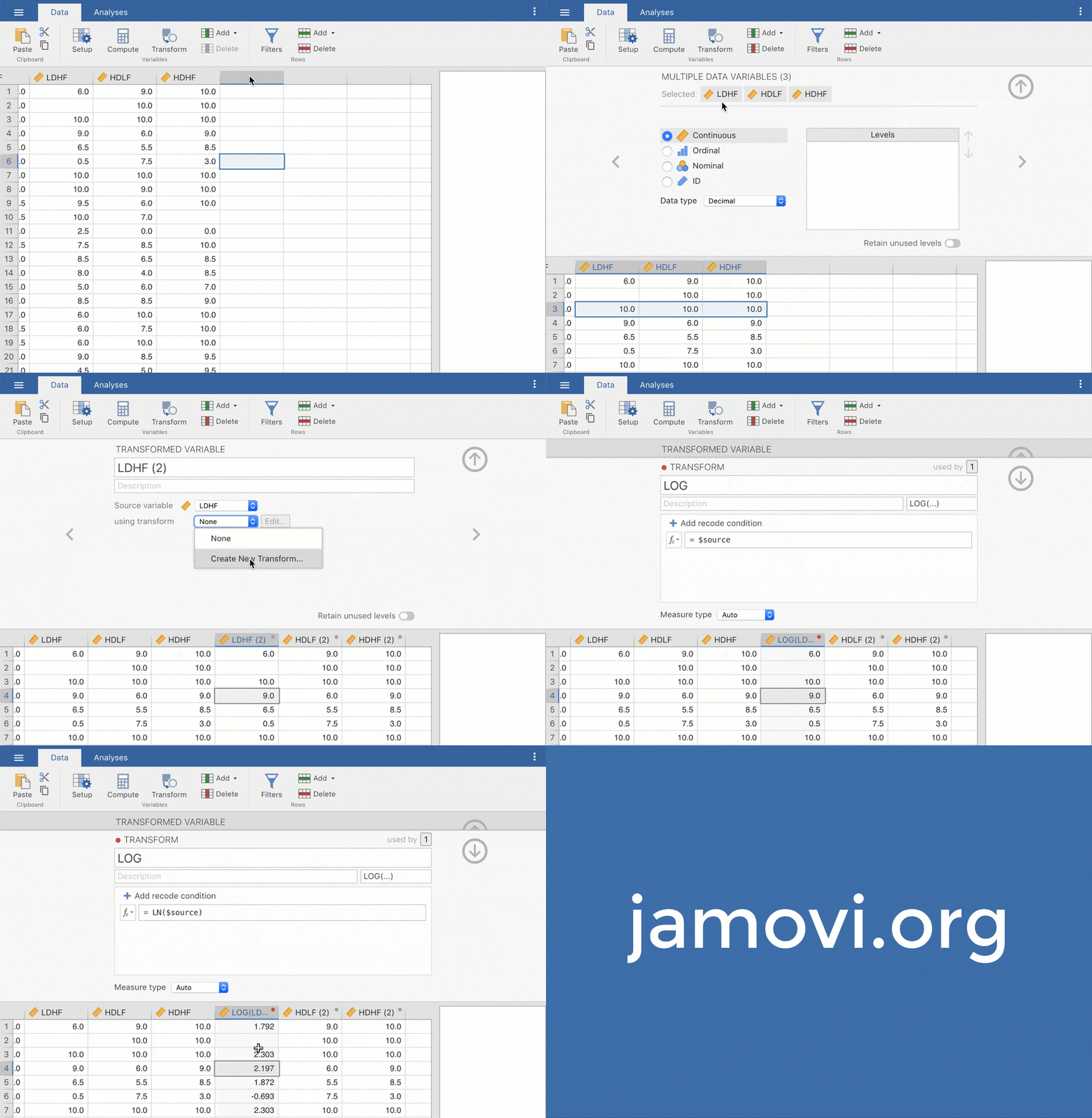
Select the columns you want to transform (hold Ctrl or ⌘ while clicking the column headers, or select multiple variables from the Variables tab).
Click the Transform button in the Data tab.
jamovi creates a new transformed variable for each column you selected, with the Source variable already set to the corresponding column. You can then define a single transformation rule and apply it across all of them at once.